Automations in one sentence — "when this happens, do these"
Write in one sentence what should happen when a lead is won, a form is submitted, an invoice is paid or a cheque bounces. The AI drafts the rule, tests it on a real record and saves it switched off for you to read and switch on.
Product update 3 min read
What changed
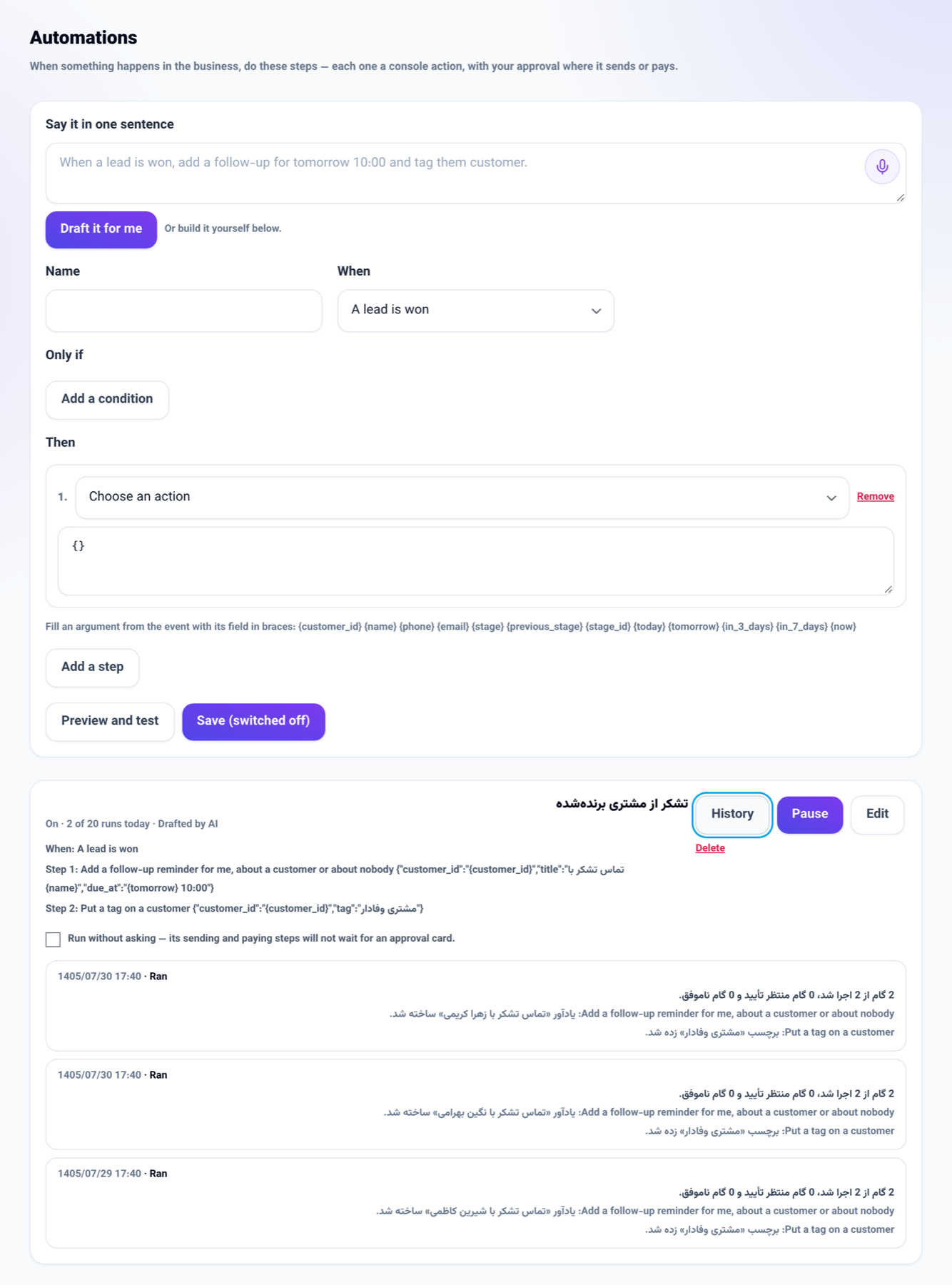
A new Automations screen sits beside Playbooks. Each automation is a rule: when something happens, if some conditions hold, do these steps in order.
- Starts: a new lead, a lead moving stage, a lead won or lost, a form submitted, an invoice paid, an invoice still unpaid a number of days after it was issued, a cheque bounced, a support ticket opened, a task still open days after its due date, and an appointment booked.
- Every step is one of the chat console (NabuOS) actions: add a reminder, tag, write a note, move a lead, create a task and the rest. Whatever your seat may not do in the console, an automation may not do either.
- Steps that send messages, move money or delete something always wait for your approval. The approval card appears in the chat console and the Telegram bot, and waits for 24 hours.
- Every run is written in its History — including when the conditions did not hold or the daily limit was reached.
How to use it
- Open Projects and tasks from the menu and choose the Automations tab.
- In "Say it in one sentence", write what you want — for example "When a lead is won, add a thank-you reminder for tomorrow at 10".
- Press Draft it for me. The form below fills with the rule, with a preview and a test run on the business's newest real record; nothing is changed by the test.
- Adjust the conditions and steps in the form if needed and press Preview and test again.
- Press Save (switched off). Once you have read the rule, press Switch on in the list.
You can also ask the chat console: "Create an automation: when a cheque bounces, remind me to call them tomorrow."
Good to know
- It works without the AI too: build the rule with the same form.
- A rule belongs to whoever made it and runs with their seat as it is today. If they leave the business, the rule switches itself off.
- "Run without asking" is for the people who run the business only, and is off by default. If the person who ticked it no longer runs the business, the steps wait for approval again.
- A rule never sets itself off, and each rule has a daily limit (20 runs by default).
- The screen is part of the Playbooks add-on and is offered to seats that may manage playbooks.