Hire AI employees with a job description
Four AI employees that each do their own job without being asked — a first reply to every new lead, chasing customers who went quiet, invoice and cheque reminders, and tidying customer files. Nothing is sent without your approval unless you allow it.
Product update 3 min read
What changed
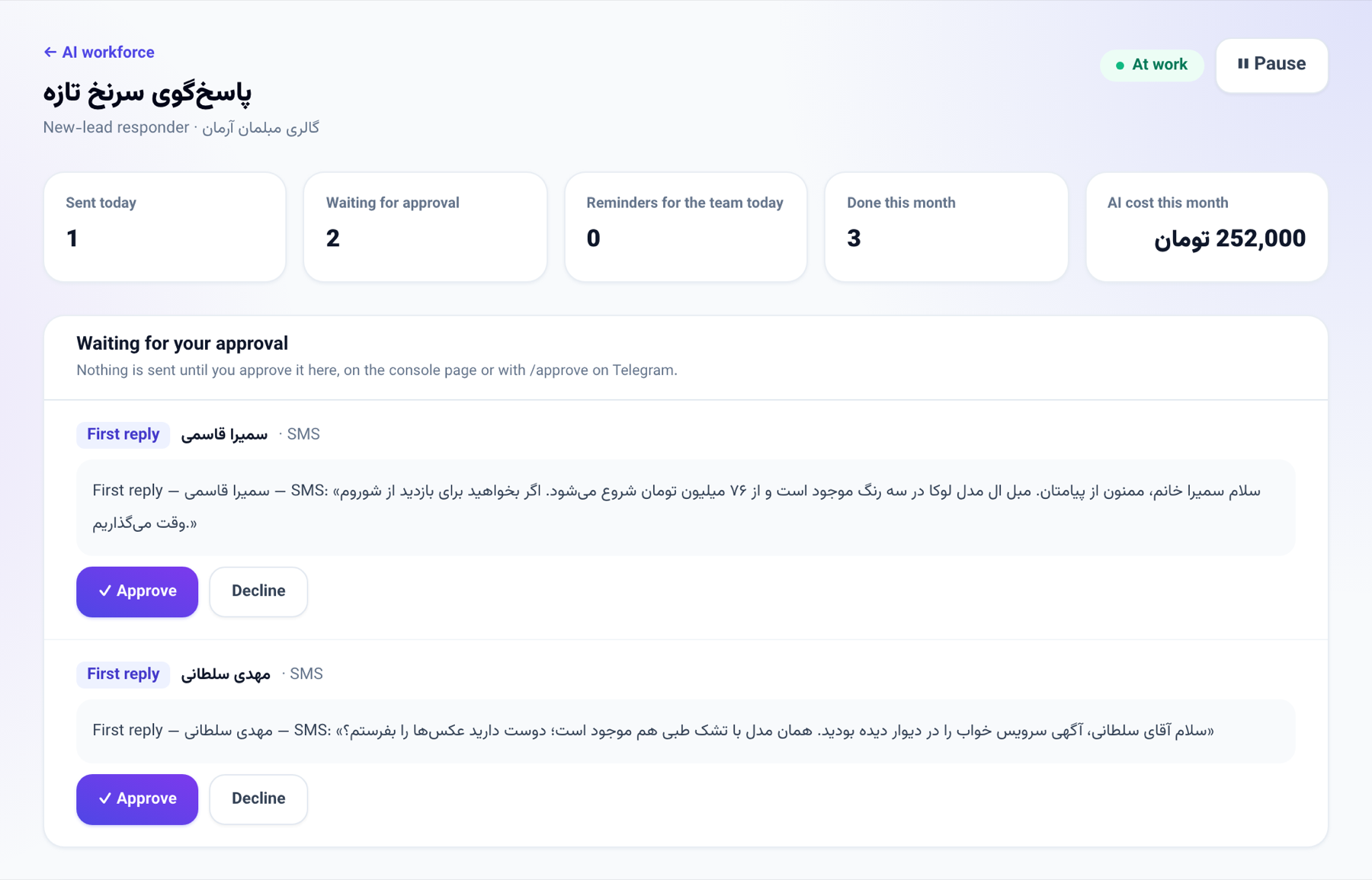
On AI workforce you can now hire an AI employee for a specific job. Each one has its own page: its job description, working hours (Tehran time), the channels it may write on, a daily cap, what it may do unasked and what waits for your approval, a daily report, and its monthly AI cost next to what it achieved.
Four jobs are ready:
- New-lead responder — every new lead from a form, a channel or an intake gets a first reply within a minute, on the channel they came from. The message is drafted from the business's knowledge and what the lead wrote, and offers a booking link when online booking is on. If the channel's bot or a colleague already answered, it stays out of it.
- Follow-up chaser — finds customers who are past their usual time to buy again or whose follow-up is long overdue. For a customer a colleague looks after, it reminds that colleague; for the rest it drafts a friendly check-in.
- Collections — sends a polite reminder with the payment link for unpaid invoices, and a heads-up a few days before a customer's cheque falls due. After a few unanswered reminders it hands the invoice to a person and stops asking.
- Data tidier — looks through the newest customer files for likely duplicates and missing names, and proposes each change on an approval card. It never changes a file on its own.
How to use it
- Open AI and connections → AI copilot and go to the AI workforce tab.
- Under Hire an AI employee with a job, press Hire next to the job you want. The employee's page opens; the employee is still paused.
- Read its job description, hours, channels and daily cap, change what you need, and press Save the job description.
- Press Start working. It works on what comes in from then on, not on anything before.
- What it drafts appears under Waiting for your approval. Press Approve to send it, or Decline. The same cards are on the NabuOS console, and on Telegram you can send /approve_N.
- Once you trust its messages, tick May send on its own.
Good to know
- A new employee always starts paused, and every message waits for approval until you tick May send on its own.
- No message goes out between 21:30 and 08:00 Tehran time. A message you approve in those hours is sent in the morning.
- Nobody who opted out of messages, or asked to be forgotten, is written to.
- Messages leave through the same doors you use in the panel: the customer's own chat, SMS or email.
- Approval cards and the 20:30 report go to the person in Reports to — the owner when nobody is chosen. The Telegram report arrives only if that person's Telegram is linked to their account.
- Only the owner or an administrator can hire or change an AI employee.
- You can also ask the console "what did the AI employees do today?" or pause one from there.