Full accounting: manual vouchers, chart of accounts, ledger, cheques, detail accounts and the opening voucher
The \"Accounting\" screen now has manual journal vouchers, the chart of accounts, trial balance, account ledger, received and written cheques, detail accounts, financial statements, the opening voucher and year closing, alongside the books built automatically from your invoices.
Product update 2 min read
What changed
The "Accounting" screen is for the work an accountant does, and whatever is posted here appears in every report and the CSV export:
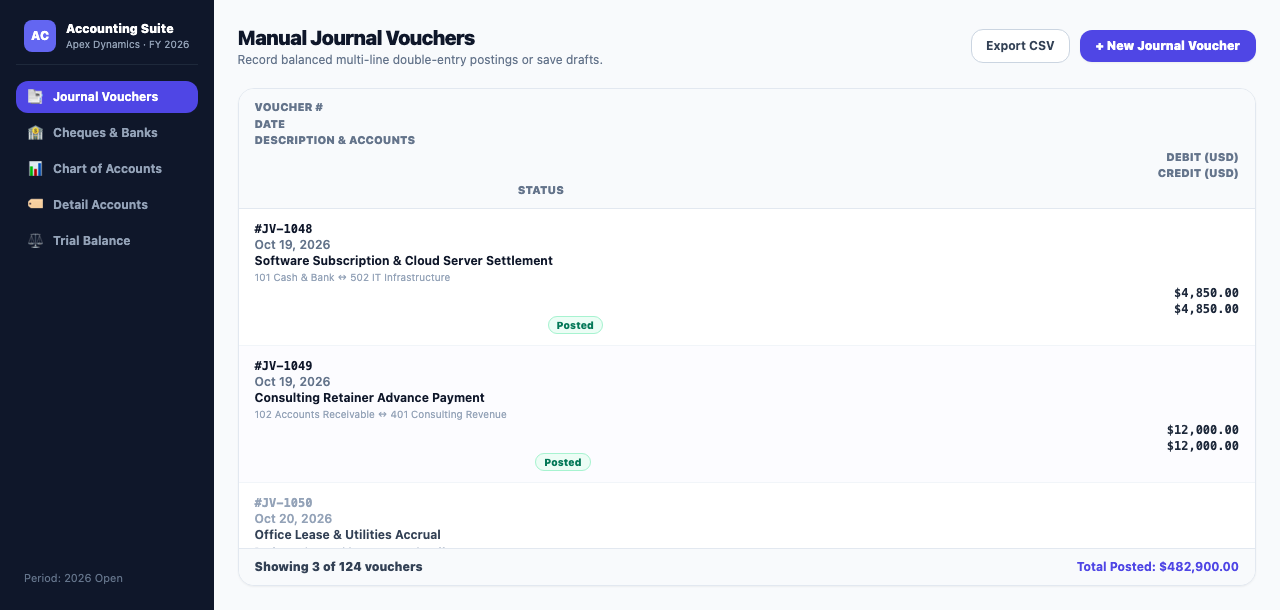
- Journal vouchers: write manual vouchers with balanced debit and credit lines. Keep a draft, or "Post to the books".
- Chart of accounts: add your own accounts. The first digit sets the kind: 1 asset, 2 liability, 3 equity, 4 income, 5–9 spending.
- Trial balance and an Account ledger for each account.
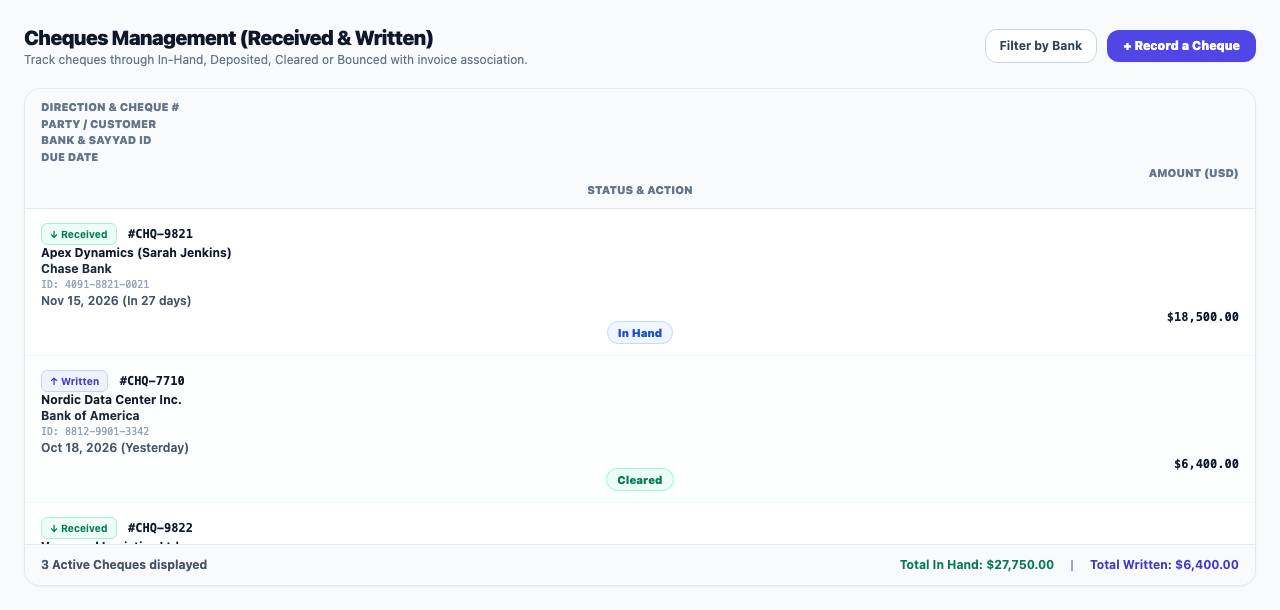
- Cheques: record cheques received or written with their Sayyad number and bank. Each moves from in hand to "Deposited for collection", then "Cleared" or "Bounced". A received cheque can be marked as paying a specific invoice ("Pays invoice"); that invoice shows as covered by a cheque until it clears.
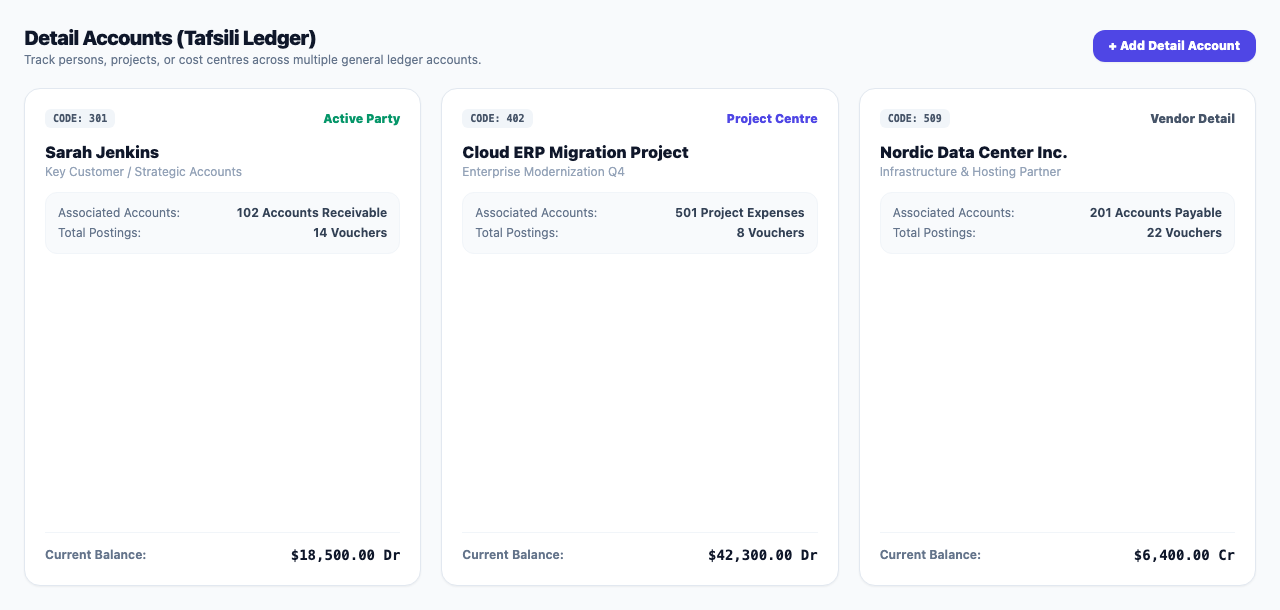
- Detail accounts: follow a person, project or cost centre across several accounts, with a balance and a card for each.
- Statements: cash flow (direct method) and changes in the owner's share.
- Opening voucher: gather several ordinary vouchers into one netted opening entry with "Convert to opening voucher".
- Closing the year: the year's profit moves to retained earnings and the period locks. The last closed year can be reopened.
How to use it
- Under "Money and accounting", open Accounting. The dark side menu groups every money screen.
- Voucher: in "Journal vouchers" press "New journal voucher", add lines with "Add line", and press "Keep as draft" or "Post to the books".
- Cheque: in "Cheques" press "Record a cheque", enter the direction, number, Sayyad number, bank, party and due date, and pick the invoice under "Pays invoice" if it settles one.
- Ledger: in "Account ledger", choose the account.
- Detail accounts: in "Chart of accounts" switch on "Take details" for the accounts that need them, then create details in "Detail accounts" with "Add a detail account".
- Year end: in "Financial year", press "Close the year".
Good to know
- Reading this screen needs billing access; posting vouchers and cheques, editing the chart and closing the year need billing management.
- Amounts are typed in the business's currency.
- The console (NabuOS) can post vouchers and cheques too; every posting waits for your approval first.